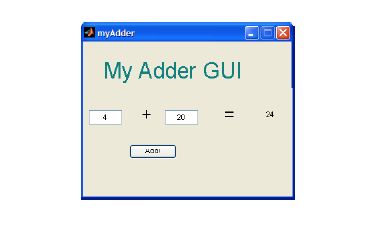
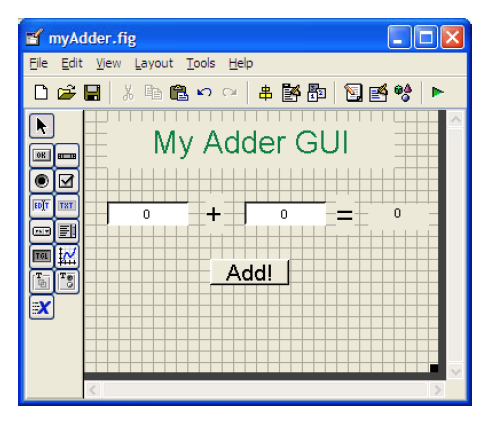
Final GUI for this tutorial
Initializing GUIDE (GUI Creator)
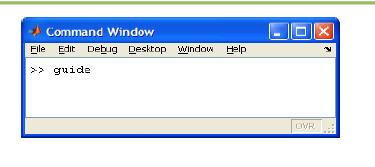
1. Open up MATLAB. Go to the command window and type in guide
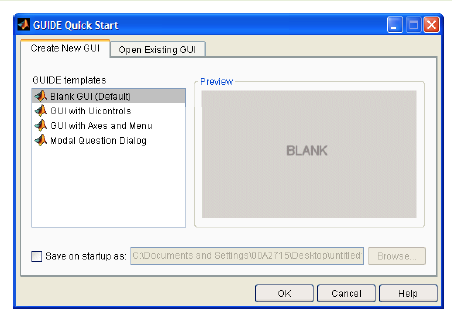
2. Choose the first option Blank GUI (Default)
3. You should now see the following screen.
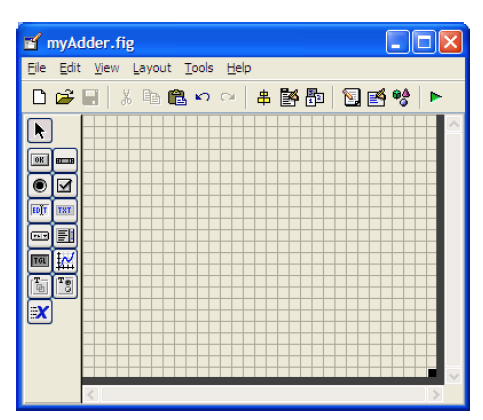
4. Before adding components blindly, it is good to have a rough idea about how you
want the graphical part of the GUI to look like.
5. For the adder GUI, we will need the following components
- Two Edit Text components
- Four Static Text component
- One Pushbutton component
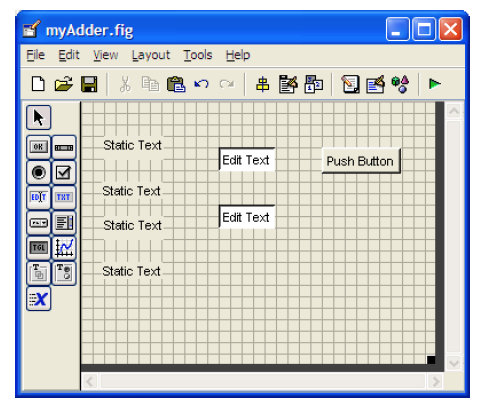
6. Edit the properties of these components.
Double click one of the Static Text components. You should see the property Inspector.
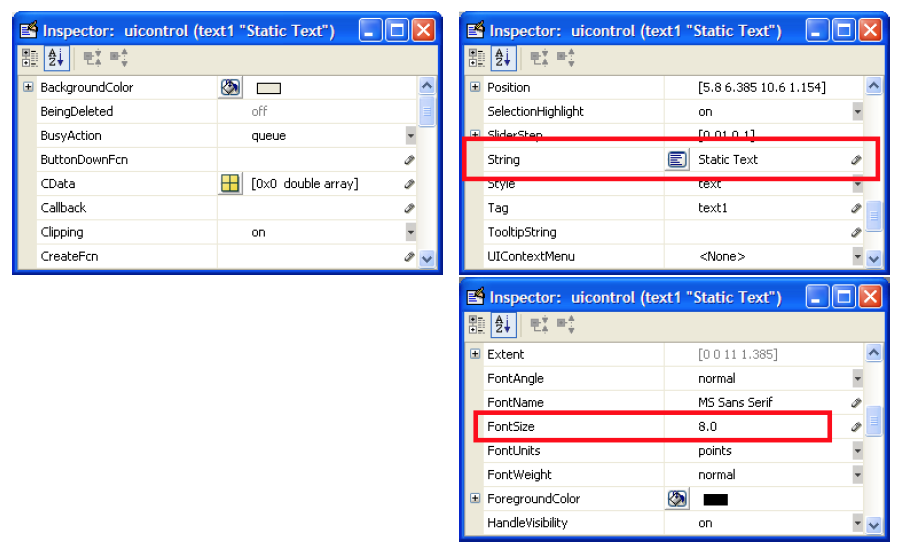
7. Do the same for the next Static Text component, but instead of changing the String parameter to +, change it to =, and another it to MyAdderGUI.
8. For Static Text component 0, modify the Tag parameter to answer_staticText.
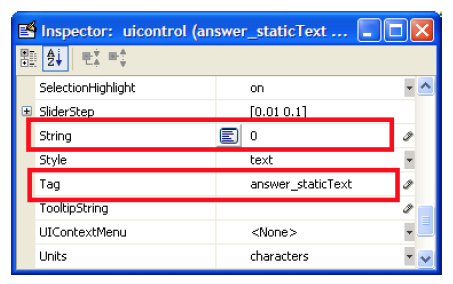
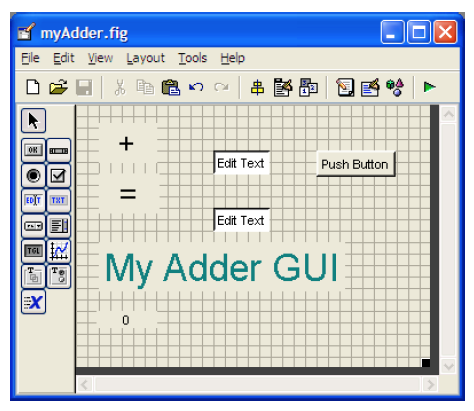
9. You should have something that looks like the following:
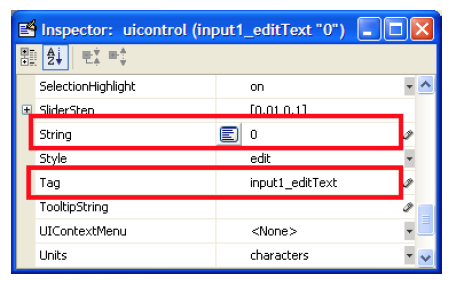
10. Modify the Edit Text components. Double click on the first Edit Text component.
Set the String parameter to 0.
Change the Tag parameter to input1_editText
11. The second Edit Text component, set the String parameter to 0
Set the Tag parameter input2_editText.
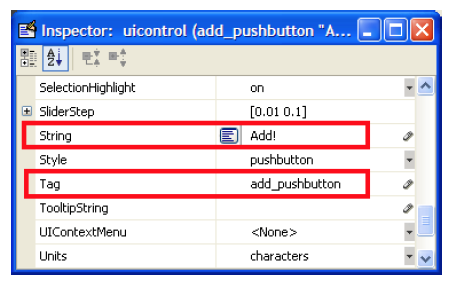
12. Modify the pushbutton component.
Change the String parameter to Add!
Change the Tag parameter to add_pushbutton.
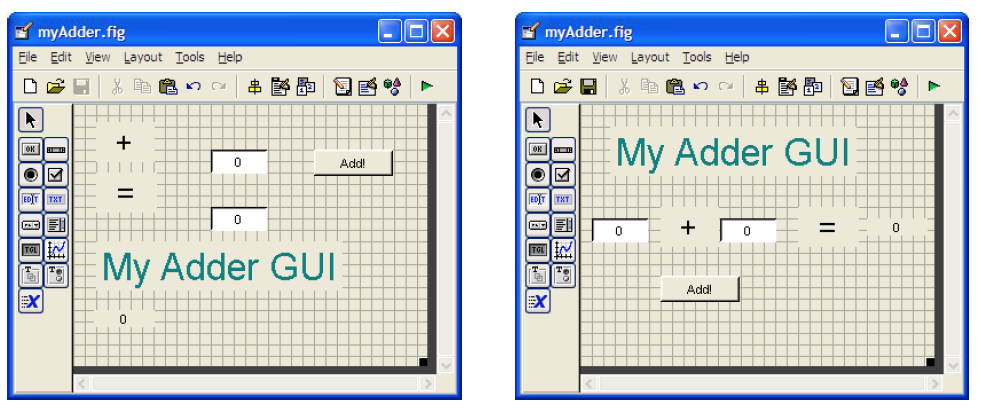
13. You should have something like this:
14. Save your GUI under any file name you please. I chose to name mine myAdder.
When you save this file, MATLAB automatically generates two files:
myAdder.fig and myAdder.m.
The .fig file contains the graphics of your interface.
The .m file contains all the code for the GUI.
Writing the Code for the GUI Callbacks
15. Open up the .m file that was automatically generated when you saved your GUI.
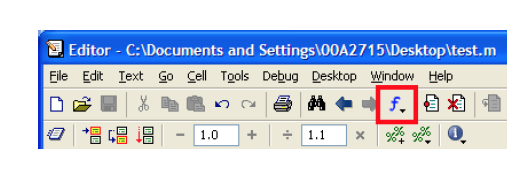
In the MATLAB editor, click on the icon (f), which will bring up a list of the functions within the .m file. Select input1_editText_Callback.
16. The cursor should take you to the following code block:
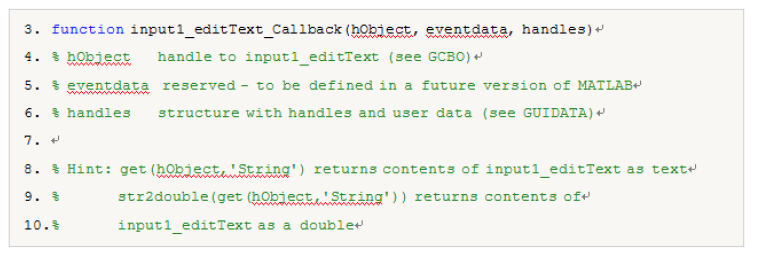
17. Add the following code to the bottom of that code block:
18. Add the same block of code to input2_editText_Callback.
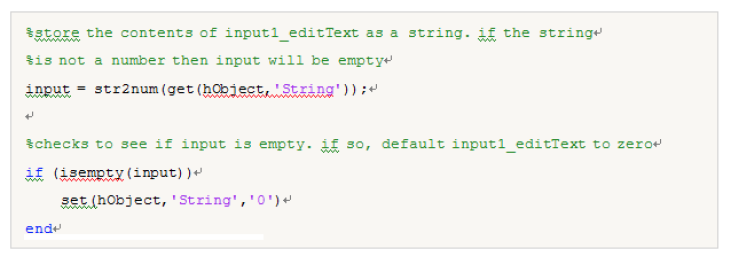
Copy and paste the code.
Input = str2num(get(hObject, ‘String’));
if (isempty(Input))
set (hObject, ‘String’, ‘0’)
end
19. Now we need to edit the add_pushbutton_Callback.
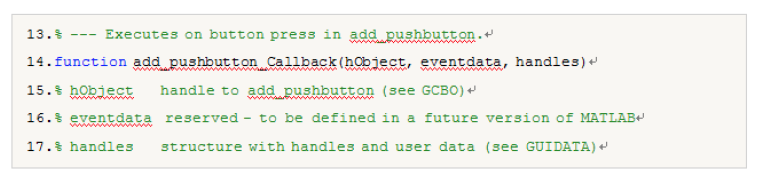
Here is the code that we will add to this callback:
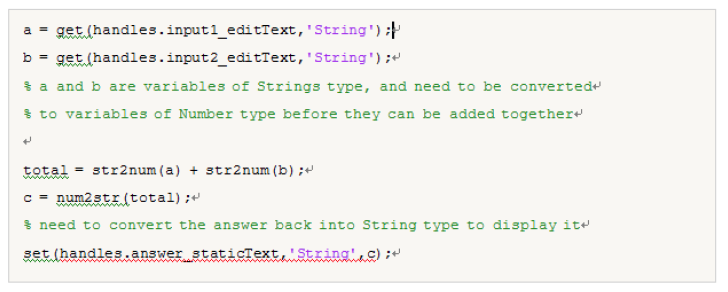
Copy and paste the code.
a = get (handles.input1_editText, ’String’);
b = get (handles.input2_editText, ’String’);
total = str2num(a) + str2num(b);
c = num2str(total);
set(handles.answer_staticText, ‘String’,c);
Launching the GUI
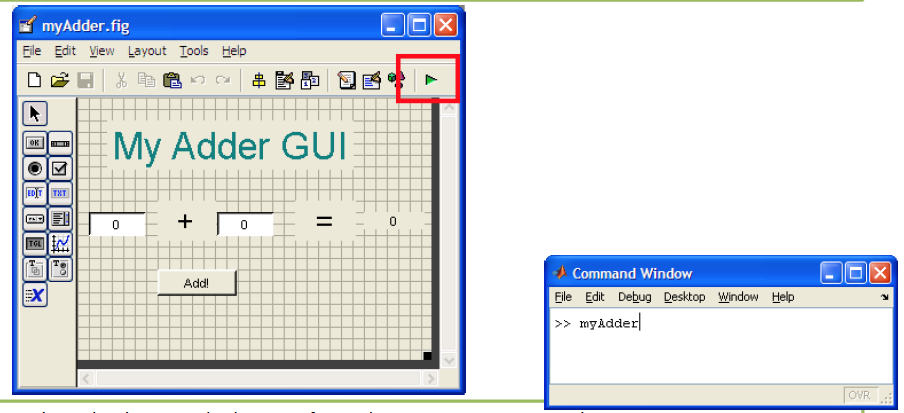
20. There are two ways to launch your GUI.
The first way: Press the icon on the GUIDE editor.
The second way : Launch the GUI from the MATLAB command prompt.
Type in the name of the GUI at the command prompt.
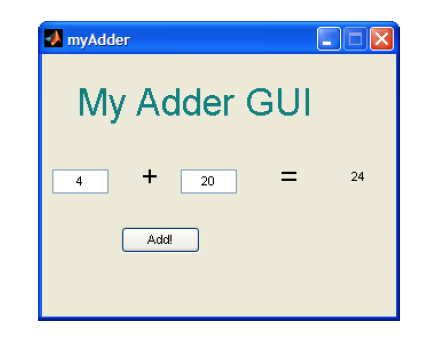
The GUI should start running immediately:
END
Share this content:
