
Login to admin account using this link: http://physio.uitm-apps.com/news_app/
Note: If admin are iOS user, tab the app icon at the top app, it will link to the admin page just link the link above). Admin can open admin page using web-browser in computer or mobile.
Instructions to add a new news/info
Admin page using web-browser using computer as below:
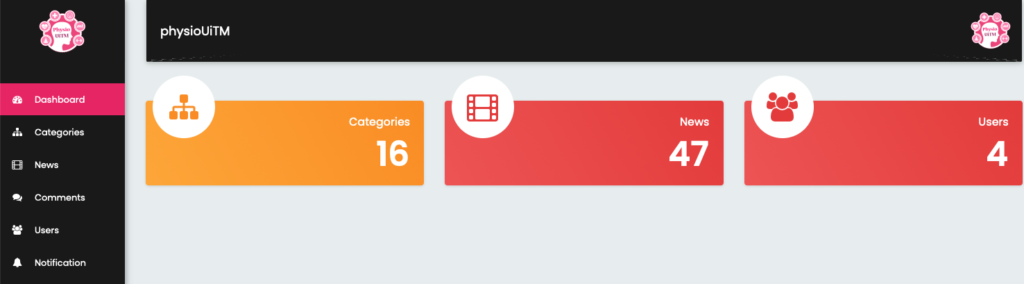
- After admin login, and want to add a new news, click at the News button at the left menu.
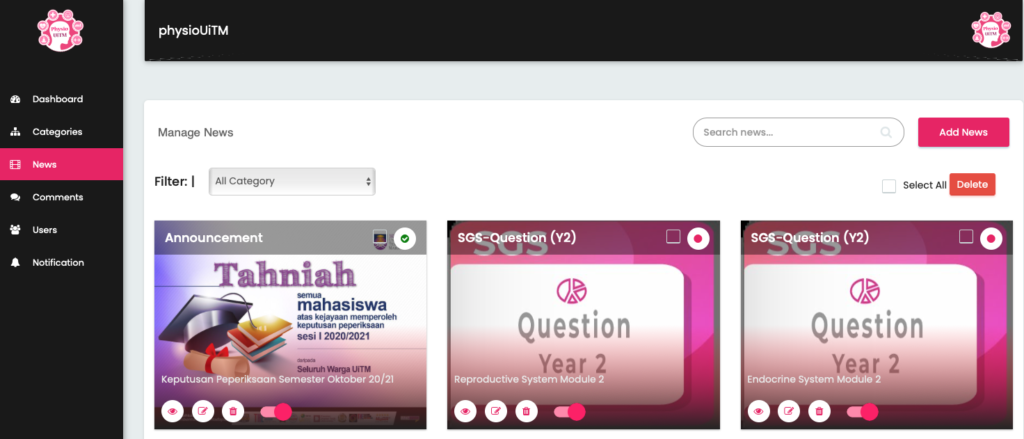
2. All posted news will be listed and admin can add a new news by click the button Add New.
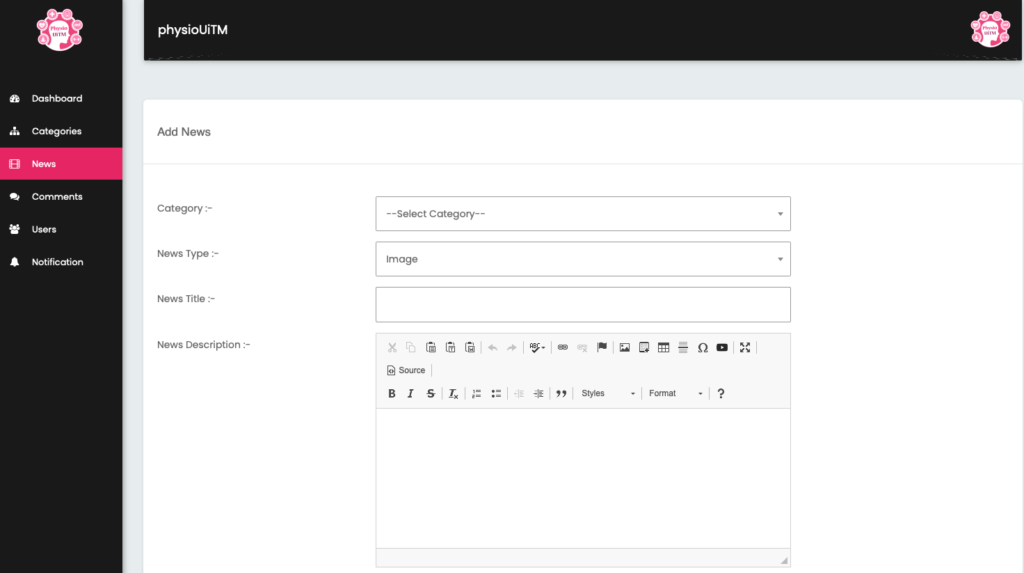
- Select the category as listed.
- News type select image for news based on image or video if the news from youtube.
- Type news title.
- Type news descriptions.
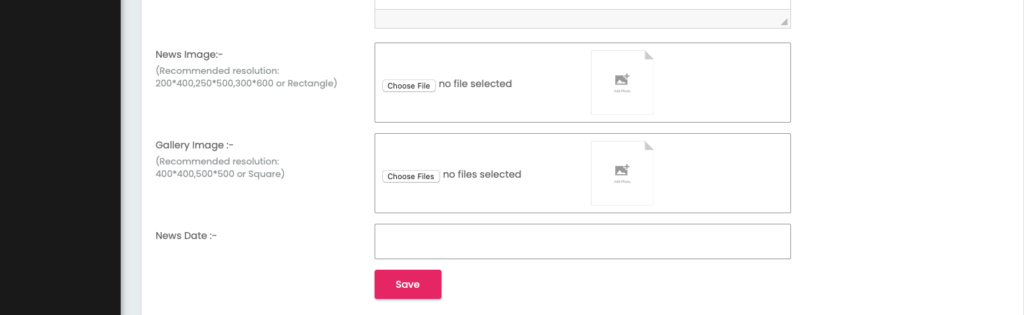
- Then, choose image file (poster and etc).
- If admin have more than one image, add the others in gallery image.
- Select the news date.
- Lastly, click save.
Instructions to push notification
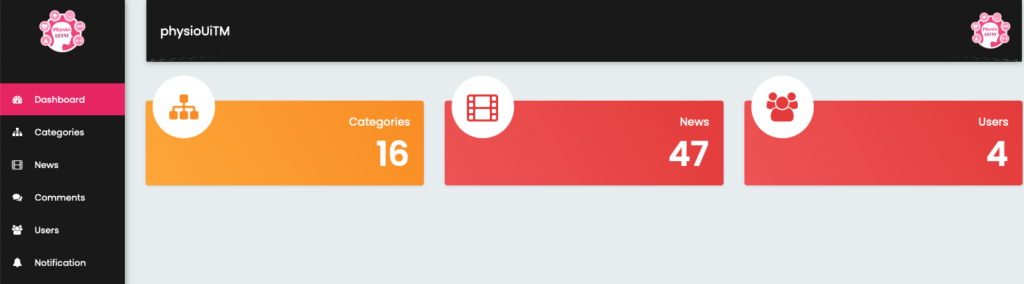
- Click at the Notification button at the left.
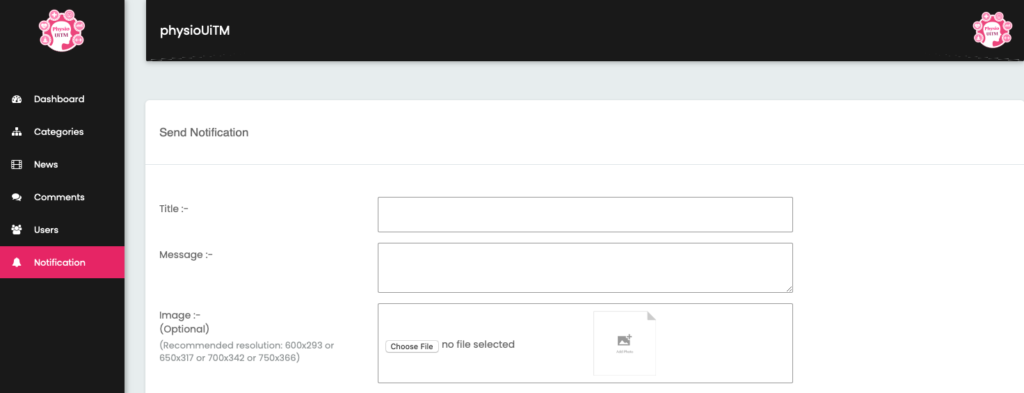
- Type Title of the news.
- Type message. It will be appear in the user notification.
- Select image if admin want the image appear with the notification.
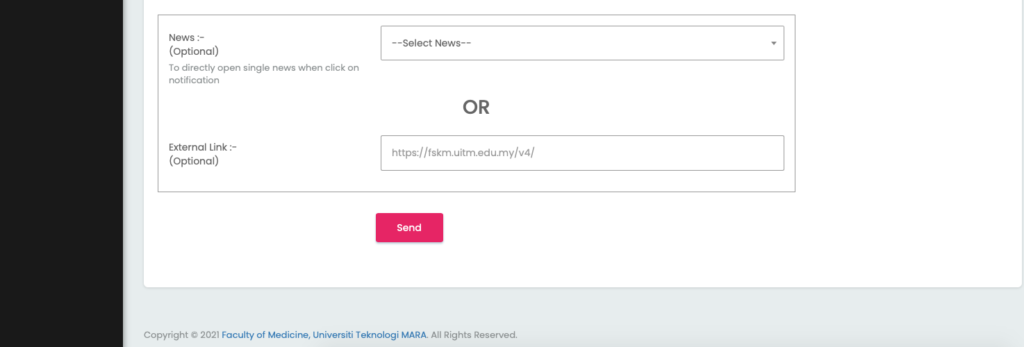
- Select news (compulsory) linked to the notification. When user click the notification, it will lead to the news.
- External link is optional if the news is outside from the app. When user click the notification, it will lead to open that link.
